
Motion
Make a boat sail, a door open, a coin spin. You set where a thing is at a few moments in time, and the editor fills in the movement between them. Motion works in 3D games.
Start from the tool strip
The quickest way: select something in the game, then press Motion at the right end of the tool strip under it (or press A).
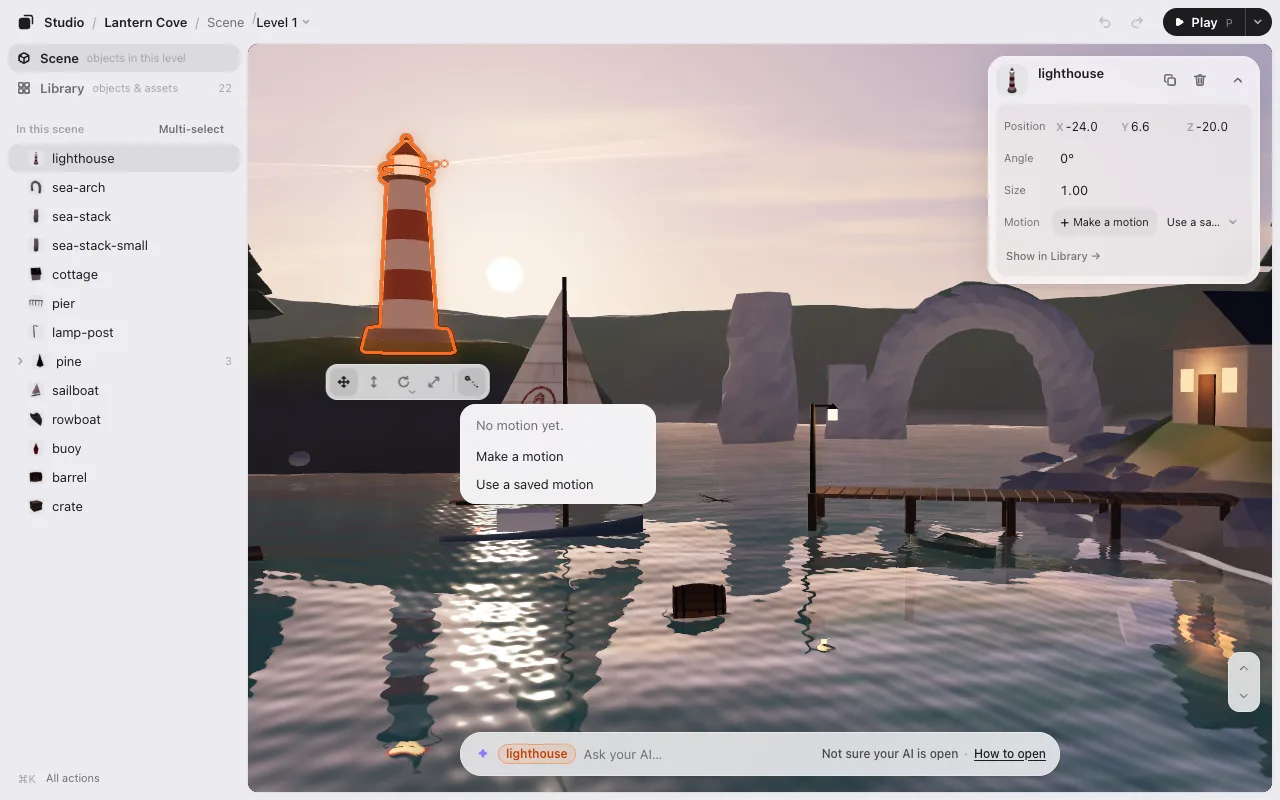
There are two ways in, and no list of ready-made kinds: you make a motion by showing it.
- Make a motion: where the thing stands now is the start (0 s). The timeline opens small at the bottom and one line says Drag it to where it should move (Esc to cancel). Drag it there and let go: that is where it is at 1 s, and the motion plays right away to show you.
- Keep going: each time you move, turn or resize it again, a point is added one second after the last, and that second plays. Done (or Esc) stops adding. ⌘Z takes one step back at a time.
- Use a saved motion: choose one you already made (only when the Library has some).
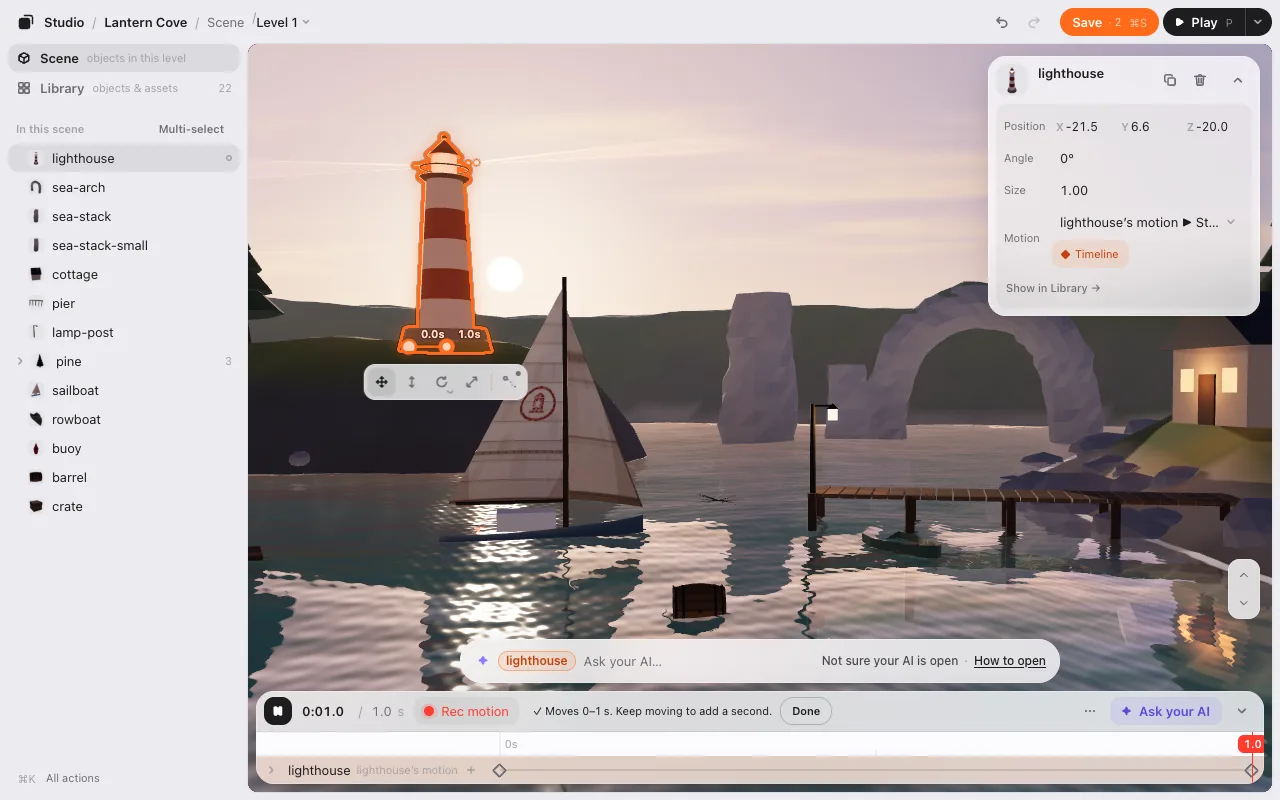
The card’s + Make a motion and the Library’s do the same. To change the timing, drag the points along the ruler. To make it go back and forth or repeat, use Repeat in ⋯ Fine-tune.
Once something has a motion, the button shows a small dot, and pressing it opens that motion on the timeline.
The timeline
Select something, then press ◆ Timeline on its card (or find Timeline in ⌘K). The timeline opens at the bottom of the game (above the card on a phone).
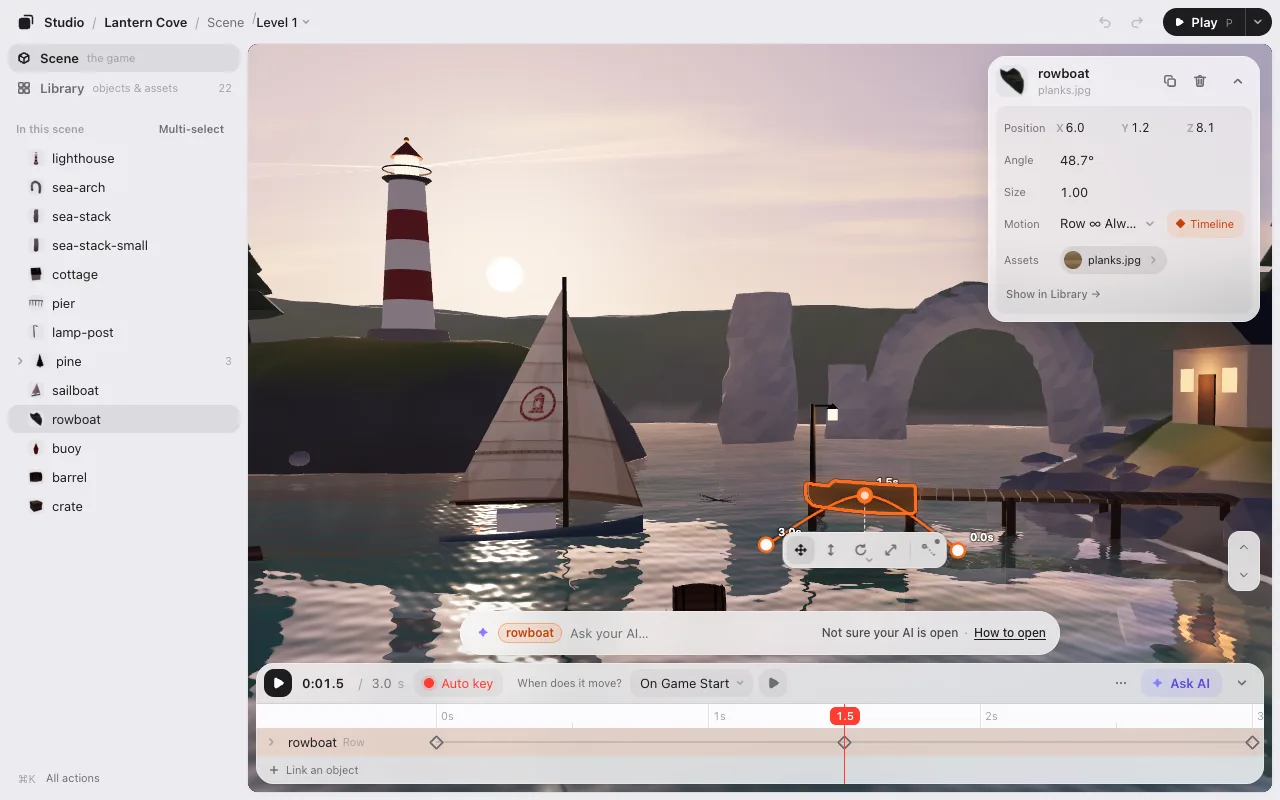
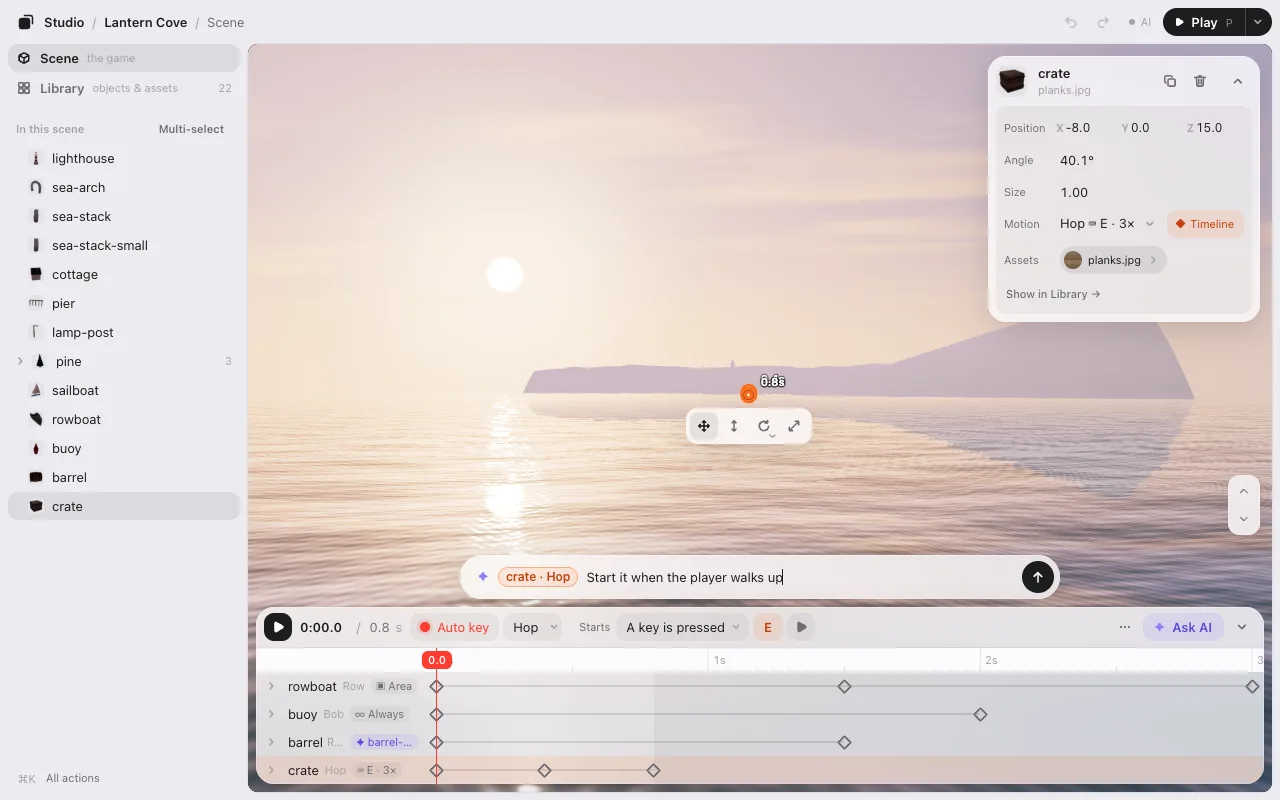
Its top is one line, with what you use every time: ▶ (or Space), the time and the motion’s length, ● Rec motion, When does it move?, then ⋯ Fine-tune, ✦ Ask Claude (your AI’s name) and ⌄ to fold it. Nothing on it is ever cut short, at any width (a narrow one takes two rows). The motion’s name is at the left of its row, next to the object’s.
- The ruler is time. Drag on it to see that moment. ← → move 0.1 s (Shift for 1 s).
- Click the length after the time to type a new one, in seconds.
- The rows are the selected object (with several selected, each of them), and the objects you link to it. Open a row to see Position, Angle and Size on their own rows.
- ⋯ Fine-tune has the finer settings: Motion (which of this object’s motions, + Make a motion, Rename, Take it off this object), Loop & End, Trigger (other ways to start), Try, and Moving objects (+ Link an object and Show all moving objects: every moving object’s row; Show only the selected one goes back). The timeline itself always stays out.
Points
A point says “at this time, be here.”
- Move the time line to a moment, like 2 s.
- Move, turn or resize the object.
With ● Rec motion on (it is, to start), that adds a point at the time line. The first one also adds a point at 0 s, where the object started. Press K to add a point without moving anything.
To change points, click them (Shift or ⌘ adds more, or drag a box):
- Drag them along the ruler to change their time.
- Delete (or Delete on the picked points’ row) removes them. ⌘C and ⌘V copy them to the time line.
- Every change is one undo step.
● Rec motion off, or the timeline folded: moving the object moves its whole motion with it.
The path
In 3D, the object’s way through its position points is drawn in the scene, with a dot for each point and a dashed line down to the ground. Drag a dot to move that point across the ground. Shift-drag moves it up and down.
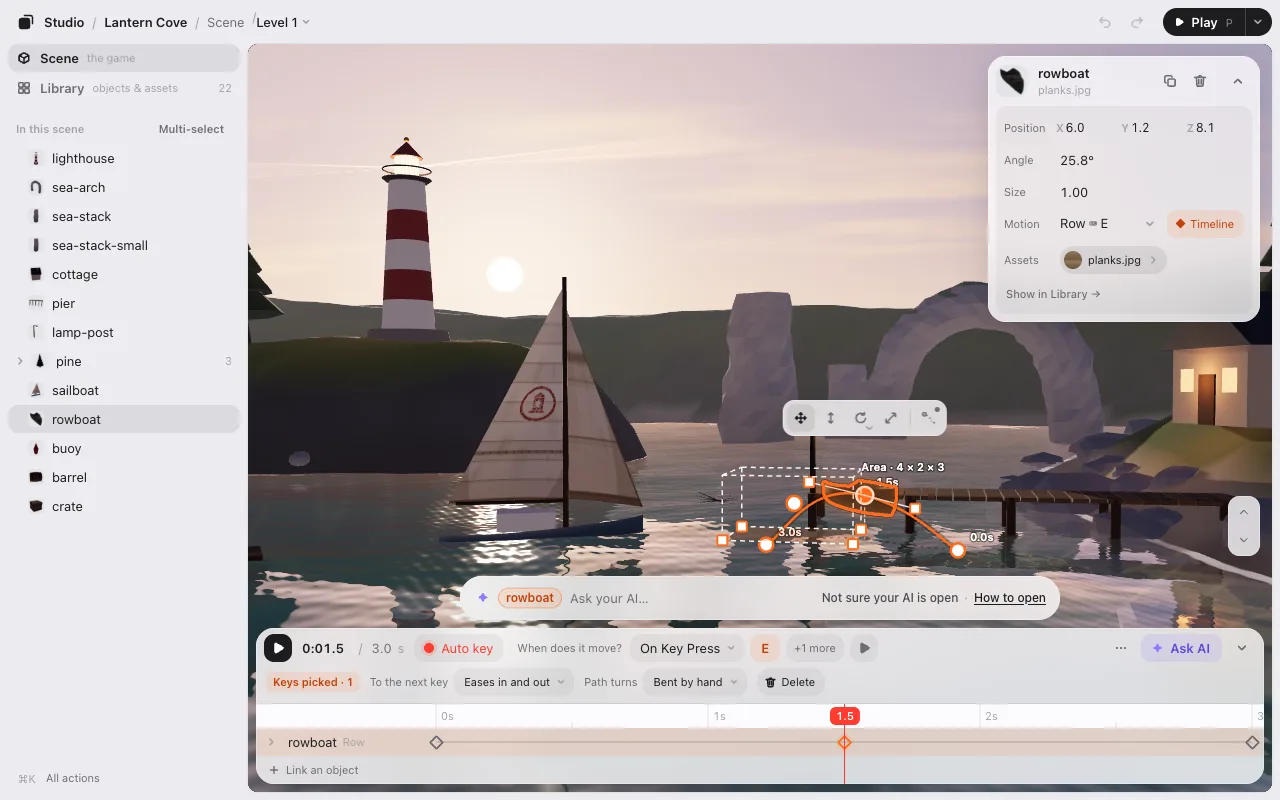
- Bend the path. Select a point (on the timeline or its dot) and two handles show. Drag one to bend the path there; the other one follows. Alt-drag moves only one, for a sharp turn.
- Make a corner. Double-click a dot (or choose Path → Sharp corner on the picked points’ row). The path comes straight in and goes straight out. Double-click again for a smooth point.
- Add a point on the path. Point at the line: a + follows it with the time. Click to add a point at that moment, without changing the path’s shape.
How points flow into each other
Select points and a 1 selected row shows under the top line. Pace chooses how they go on to the next one:
- Smooth (slow start & stop): starts slow, ends slow. The default.
- Steady: the same speed all the way.
- Hold, then jump: stays put, then jumps to the next point.
The same row has Path (with position points picked: Smooth curve or Sharp corner) and Delete.
Repeat (in ⋯ Fine-tune) sets what happens at the end: Once, Repeats, or Back and forth.
When it starts
When does it move?, on the timeline’s top line, chooses when a motion begins. The ▶ next to it tries that moment. Right after a motion is attached or made, this menu has an orange ring: it is the next thing to decide.
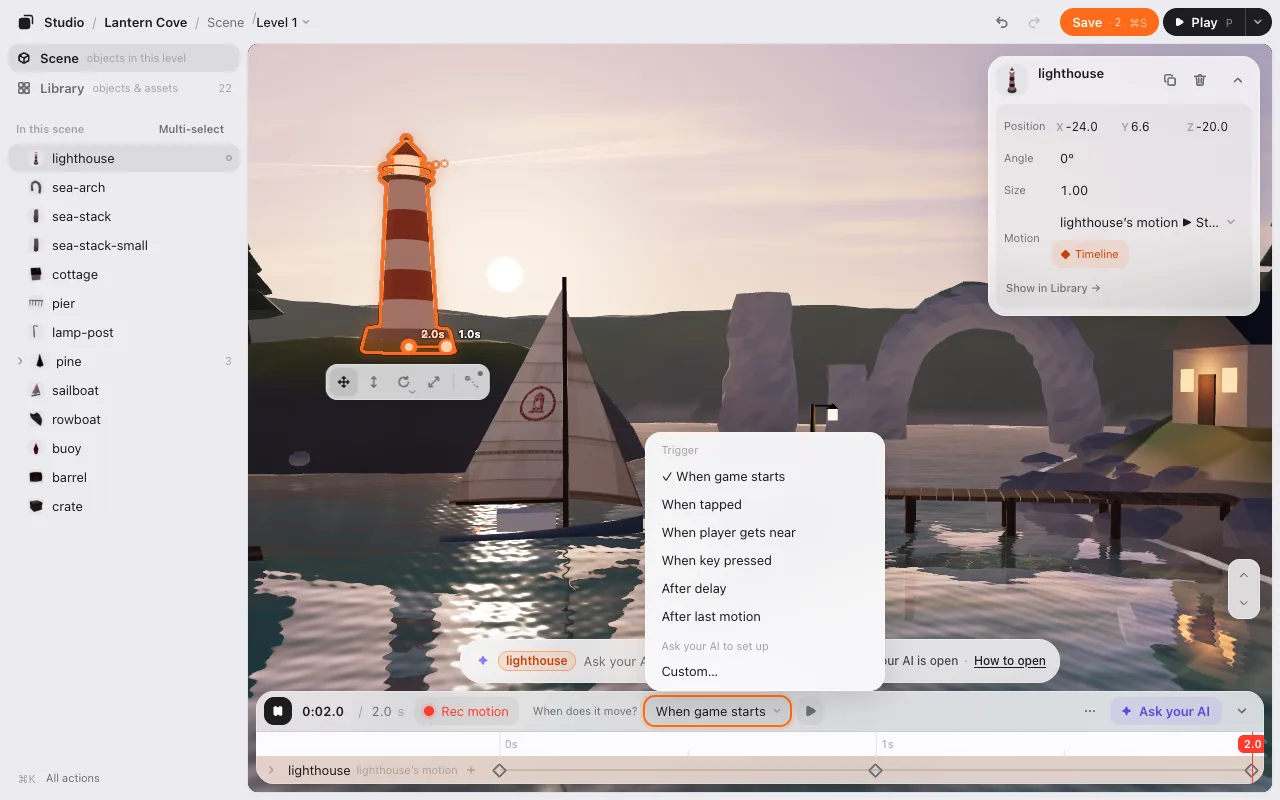
Under Trigger:
- When game starts: from the moment the game starts.
- When tapped: when the player touches or clicks this.
- When player gets near: when the player comes within a distance. A box shows in the scene. Drag its white point to place it (Shift-drag for up and down). Drag a corner to resize it from the opposite corner (Shift-drag for its height).
- When key pressed: when a key or an on-screen button is pressed.
- After delay: a number of seconds after the game starts.
- After last motion: when another motion ends (only when there is another one).
Under Ask Claude to set up (your AI’s name):
- Custom…: the chat box at the bottom opens with this motion in it. Say when, like “when it is hit, turn red and blow up,” and your AI writes the rule into the game’s code. The menu then says Custom. A motion your AI already set up shows it, like When it bumps into something (AI) or When signaled (AI).
In ⋯ Fine-tune, + or adds another way to start, like “a key is pressed or this is clicked.” Any one of them starts it. × removes one. The top line then says +1 more.
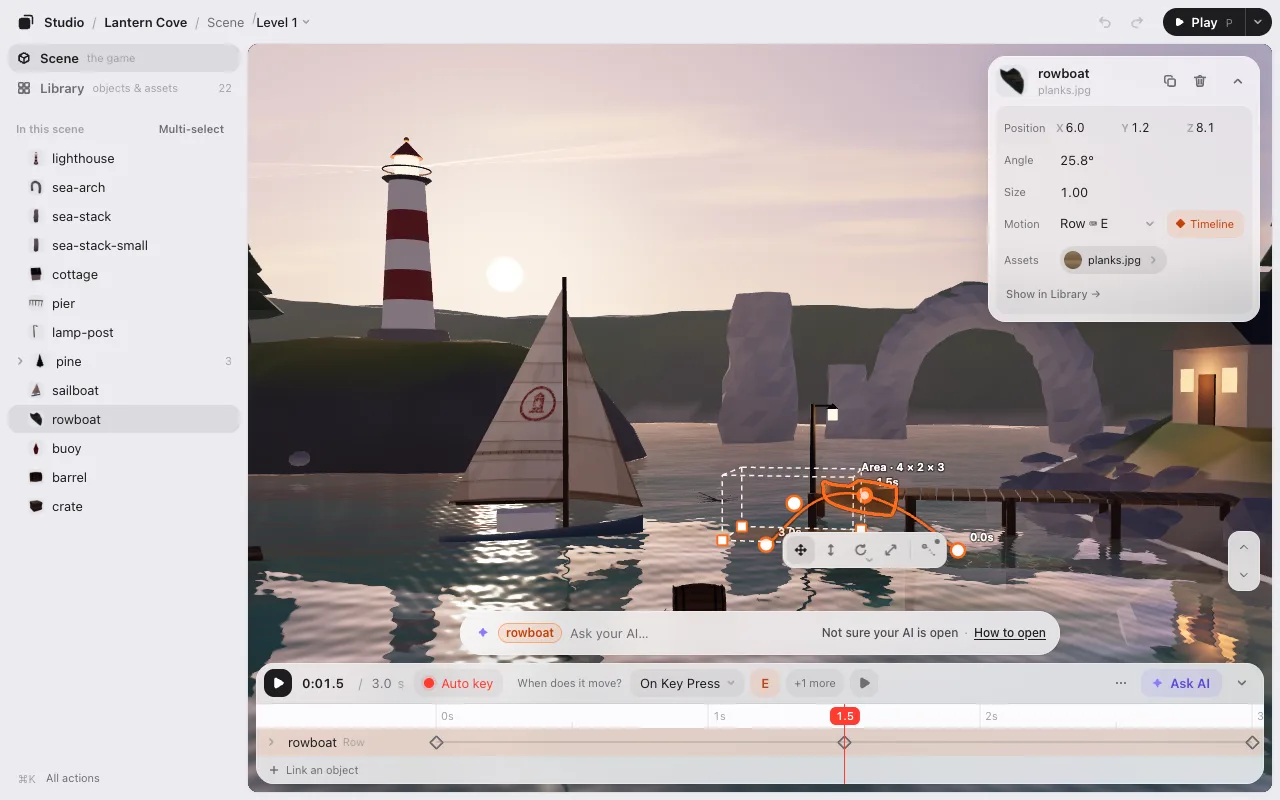
Stops (in ⋯ Fine-tune, under Loop & End) chooses when it ends: Never, After some rounds, or When signaled. Then it Stays there or Goes back.
Try it
The ▶ next to When does it move? runs the scene as if this motion’s start just happened. Press it again to stop.
Try in ⋯ Fine-tune shows one ▶ for each way a motion can start in this scene, like “Game starts” or “Click boat.” Press one to run the scene as if that just happened. Stop ends it.
Linking: several things in one motion
The timeline shows the selected object only. When a motion should move other things too, like a short cutscene (the crate hops, the buoy dips, the barrel rolls off the pier), link them to it.
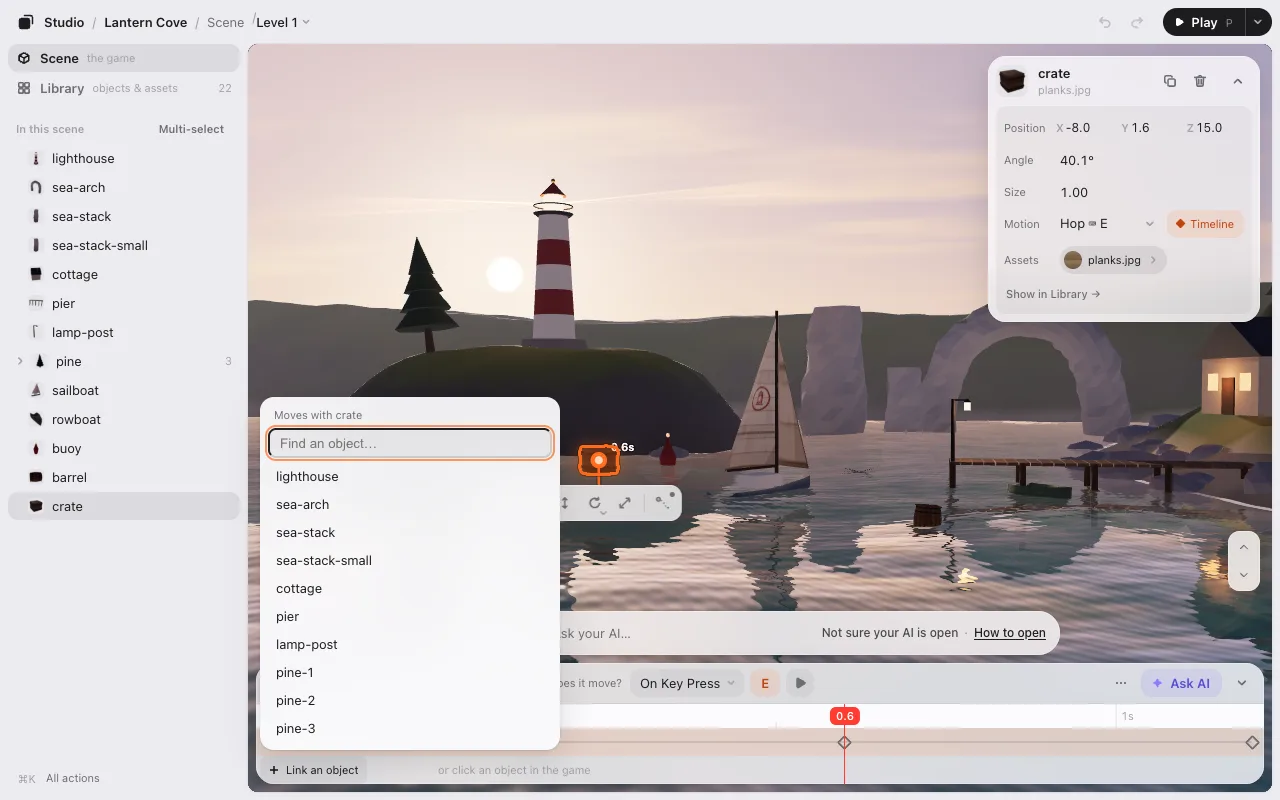
- Press the + at the right end of the selected object’s row (Link an object; also under Moving objects in ⋯ Fine-tune).
- Choose one from the list (type to find it by name), or click it in the game while the list is open. The selected object stays selected.
- It gets a row of its own on the same time line. Move it with ● Rec motion on to add its points. The rows’ top-left corner says Linked · 2.
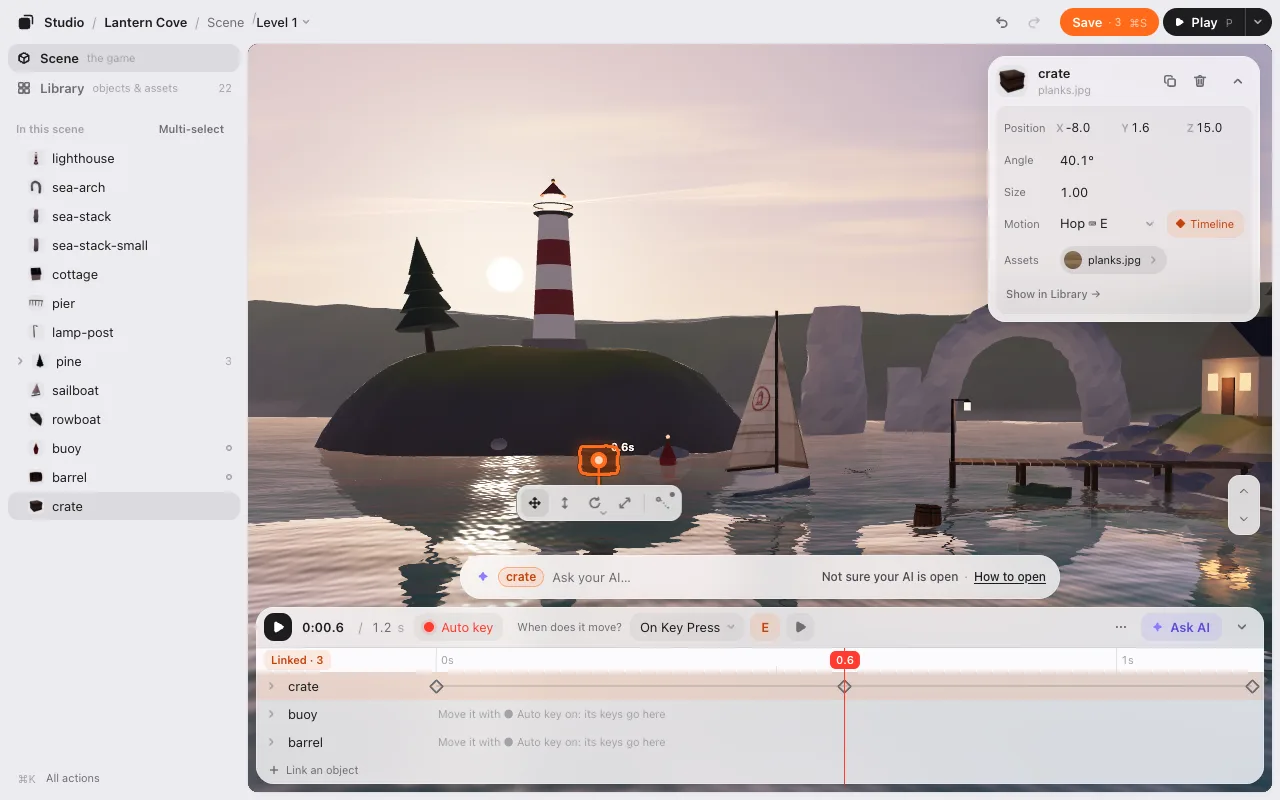
When does it move? and Stops are shared: all of them start together. Selecting a linked object shows the same rows in the same order (its row lights up). Drag the ⠿ at a row’s left to change the order (saved with the motion). × on a linked row unlinks it (its own motions stay). Unlink the last one and the motion is the selected object’s alone again.
You can also drop a linked motion from the Library onto an object to link it.
The motion Library
Every motion is in the Library, under Motion. Each tile draws the path and plays it when you point at it.
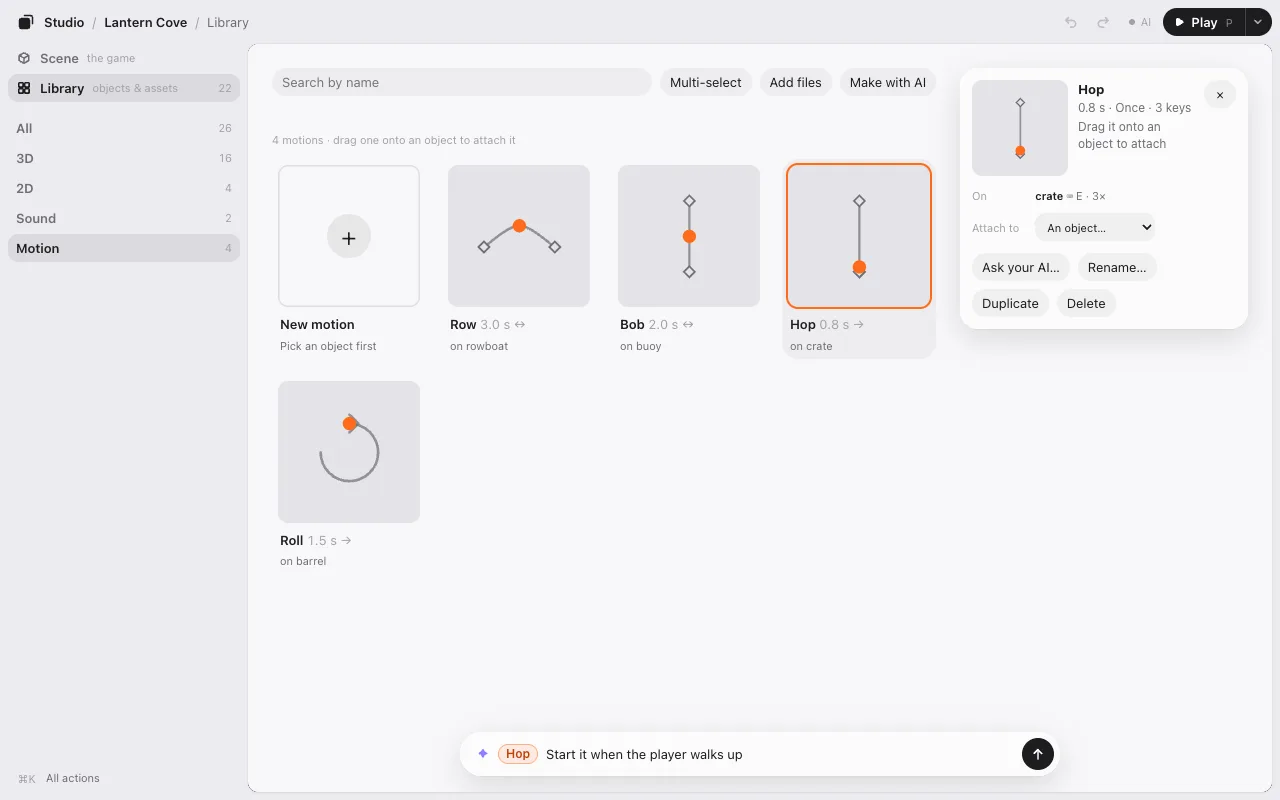
- Attach to… puts the same motion on another object. Change its points once and every object that uses it changes.
- Duplicate makes a copy to change on its own.
- Ask your AI… puts the motion in the box at the bottom, so you can ask for something like “make it bob more.”
Ask your AI for a motion
You don’t have to add points yourself. Two ways to use your AI:
- Use a motion you made. Press ✦ Ask Claude on the timeline (or Ask Claude about… in the card’s motion menu, a right-click on the object, or the motion in the Library). The chat box at the bottom gets a chip with both names, like crate · Hop, and the cursor. Say what you want: “start it when the player walks up,” then “a bit slower.” Your AI connects that moment in the game’s code.
- Describe it. Select something and ask in the box at the bottom: “make the boat rock gently.” Your AI writes the movement into the game’s code. It plays in ▶ Play and in the game, but it isn’t on the timeline.
In the game
Motions are saved in placement.json with the rest of your layout. When the game starts, the line that reads your layout plays them too. In ▶ Play, you see them as they’ll be in the game.
Next: Levels.